> ## Documentation Index
> Fetch the complete documentation index at: https://docs-staging-feat-3p-app-cross-app.mintlify.site/llms.txt
> Use this file to discover all available pages before exploring further.

> Learn how to configure an update policy form using Forms for Actions for users to review and accept new terms of service or consent updates.

# Use Cases: Configure an update policy form using Forms

<Card title="Before you start">
  1. Create a [Machine-to-Machine Application](/docs/get-started/auth0-overview/create-applications/machine-to-machine-apps) with the following scopes enabled:

  * `read:users`
  * `update:users`
  * `create:users`
  * `read:users_app_metadata`
  * `update:users_app_metadata`
  * `create:users_app_metadata`

  2. Add a [Vault connection](/docs/customize/forms/vault) using the M2M application credentials.
</Card>

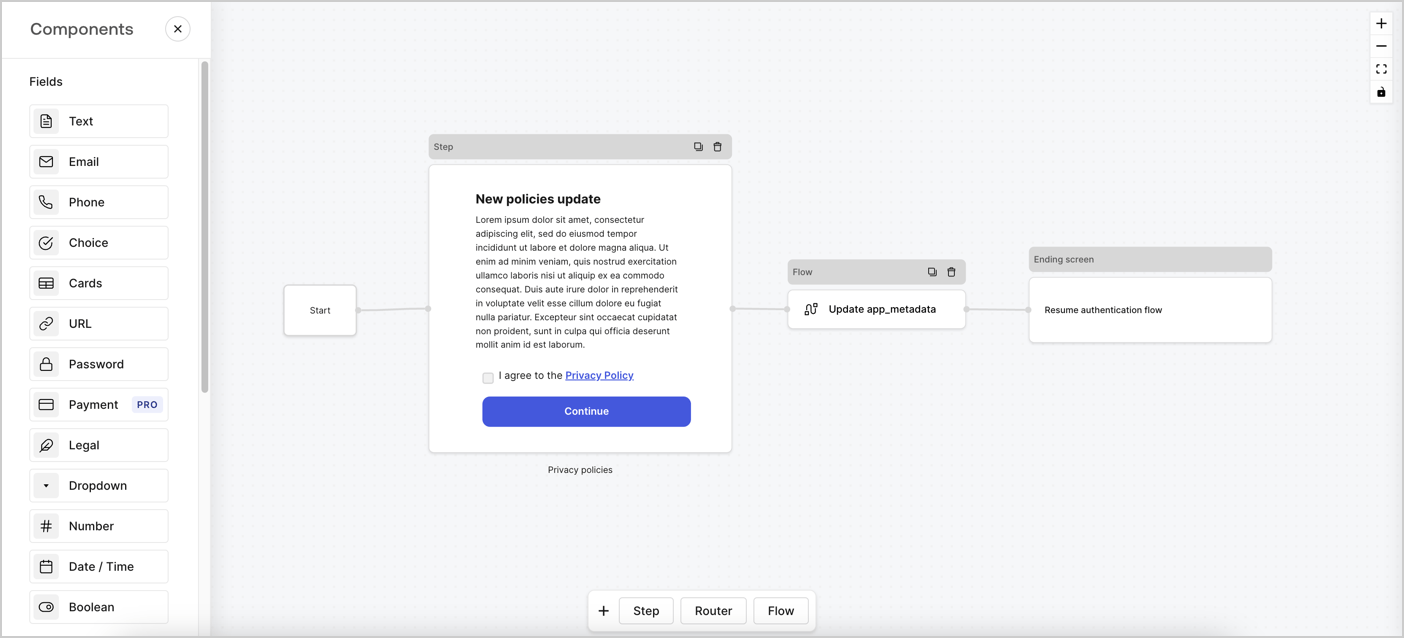
Forms for Actions allows you to create custom privacy policies flows and store the consent under the `app_metadata` object.
<Frame>
  <img src="https://mintcdn.com/docs-staging-feat-3p-app-cross-app/nTdGsZGW3CusC03P/docs/images/cdy7uua7fh8z/6i68dMvHDTijfRmSgN1x8Q/ad900e7d4c0fb34645921435472b8684/privavy-policy-form.png?fit=max&auto=format&n=nTdGsZGW3CusC03P&q=85&s=6bc5e4e147836749ee38ef6c11dcc137" alt="Dashboard > Actions > Forms > Privacy policy use case" data-og-width="1404" width="1404" data-og-height="638" height="638" data-path="docs/images/cdy7uua7fh8z/6i68dMvHDTijfRmSgN1x8Q/ad900e7d4c0fb34645921435472b8684/privavy-policy-form.png" data-optimize="true" data-opv="3" srcset="https://mintcdn.com/docs-staging-feat-3p-app-cross-app/nTdGsZGW3CusC03P/docs/images/cdy7uua7fh8z/6i68dMvHDTijfRmSgN1x8Q/ad900e7d4c0fb34645921435472b8684/privavy-policy-form.png?w=280&fit=max&auto=format&n=nTdGsZGW3CusC03P&q=85&s=689c7aa4f0dad13e3135b360b8302754 280w, https://mintcdn.com/docs-staging-feat-3p-app-cross-app/nTdGsZGW3CusC03P/docs/images/cdy7uua7fh8z/6i68dMvHDTijfRmSgN1x8Q/ad900e7d4c0fb34645921435472b8684/privavy-policy-form.png?w=560&fit=max&auto=format&n=nTdGsZGW3CusC03P&q=85&s=a62bdb99a83586daf74fe9482309aa64 560w, https://mintcdn.com/docs-staging-feat-3p-app-cross-app/nTdGsZGW3CusC03P/docs/images/cdy7uua7fh8z/6i68dMvHDTijfRmSgN1x8Q/ad900e7d4c0fb34645921435472b8684/privavy-policy-form.png?w=840&fit=max&auto=format&n=nTdGsZGW3CusC03P&q=85&s=a57efb8d8a1b5f58a234fd7d2b83afde 840w, https://mintcdn.com/docs-staging-feat-3p-app-cross-app/nTdGsZGW3CusC03P/docs/images/cdy7uua7fh8z/6i68dMvHDTijfRmSgN1x8Q/ad900e7d4c0fb34645921435472b8684/privavy-policy-form.png?w=1100&fit=max&auto=format&n=nTdGsZGW3CusC03P&q=85&s=ddc68ecc8d91e63e62aad9daff767d81 1100w, https://mintcdn.com/docs-staging-feat-3p-app-cross-app/nTdGsZGW3CusC03P/docs/images/cdy7uua7fh8z/6i68dMvHDTijfRmSgN1x8Q/ad900e7d4c0fb34645921435472b8684/privavy-policy-form.png?w=1650&fit=max&auto=format&n=nTdGsZGW3CusC03P&q=85&s=8f5508ccdce62c9237303b42f5bd0155 1650w, https://mintcdn.com/docs-staging-feat-3p-app-cross-app/nTdGsZGW3CusC03P/docs/images/cdy7uua7fh8z/6i68dMvHDTijfRmSgN1x8Q/ad900e7d4c0fb34645921435472b8684/privavy-policy-form.png?w=2500&fit=max&auto=format&n=nTdGsZGW3CusC03P&q=85&s=02c3680aa478adcf4650e52b47a894e6 2500w" />
</Frame>

The sections below outline how you can create an Update Policy form using nodes and flows, along with steps for adding your form to a [Post Login](/docs/customize/actions/explore-triggers/signup-and-login-triggers/login-trigger) Action.

## Create a form from scratch

Follow these steps to create a form to gather information:

1. Open the Form editor by selecting **Auth0 Dashboard > Actions > Forms.**
2. Select **Create Form** > **Start from scratch**.

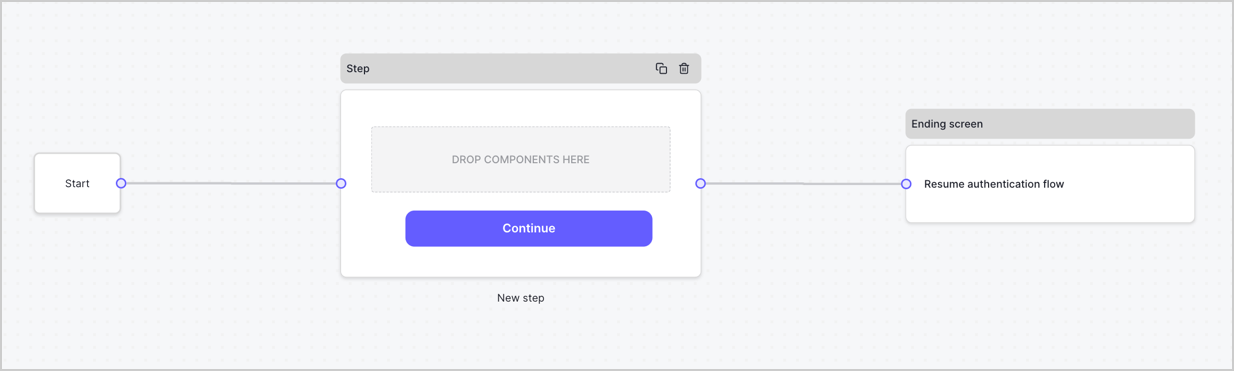
By default, a new form contains a Start node, a Step node, and an Ending screen node.
<Frame>
  <img src="https://mintcdn.com/docs-staging-feat-3p-app-cross-app/nLiwM1yzsAsC-Cbb/docs/images/cdy7uua7fh8z/2TZ9jSjgEcARFpULI6hz4R/a4319a1bd482f2ee5cc23100fdb2f42c/New-form-Forms-for-action-use-case.png?fit=max&auto=format&n=nLiwM1yzsAsC-Cbb&q=85&s=d18e3e805de196070b2c5c301f6425d4" alt="Dashboard > Forms > Use Cases > Form" data-og-width="1234" width="1234" data-og-height="371" height="371" data-path="docs/images/cdy7uua7fh8z/2TZ9jSjgEcARFpULI6hz4R/a4319a1bd482f2ee5cc23100fdb2f42c/New-form-Forms-for-action-use-case.png" data-optimize="true" data-opv="3" srcset="https://mintcdn.com/docs-staging-feat-3p-app-cross-app/nLiwM1yzsAsC-Cbb/docs/images/cdy7uua7fh8z/2TZ9jSjgEcARFpULI6hz4R/a4319a1bd482f2ee5cc23100fdb2f42c/New-form-Forms-for-action-use-case.png?w=280&fit=max&auto=format&n=nLiwM1yzsAsC-Cbb&q=85&s=f4ae72eb11154faca54cf4fb465808c2 280w, https://mintcdn.com/docs-staging-feat-3p-app-cross-app/nLiwM1yzsAsC-Cbb/docs/images/cdy7uua7fh8z/2TZ9jSjgEcARFpULI6hz4R/a4319a1bd482f2ee5cc23100fdb2f42c/New-form-Forms-for-action-use-case.png?w=560&fit=max&auto=format&n=nLiwM1yzsAsC-Cbb&q=85&s=c0942591226dbf62339ba04965e1a7c7 560w, https://mintcdn.com/docs-staging-feat-3p-app-cross-app/nLiwM1yzsAsC-Cbb/docs/images/cdy7uua7fh8z/2TZ9jSjgEcARFpULI6hz4R/a4319a1bd482f2ee5cc23100fdb2f42c/New-form-Forms-for-action-use-case.png?w=840&fit=max&auto=format&n=nLiwM1yzsAsC-Cbb&q=85&s=cca02e4f6f089935b44e27da920ec872 840w, https://mintcdn.com/docs-staging-feat-3p-app-cross-app/nLiwM1yzsAsC-Cbb/docs/images/cdy7uua7fh8z/2TZ9jSjgEcARFpULI6hz4R/a4319a1bd482f2ee5cc23100fdb2f42c/New-form-Forms-for-action-use-case.png?w=1100&fit=max&auto=format&n=nLiwM1yzsAsC-Cbb&q=85&s=0b666069cb311ff9683dde82259740b1 1100w, https://mintcdn.com/docs-staging-feat-3p-app-cross-app/nLiwM1yzsAsC-Cbb/docs/images/cdy7uua7fh8z/2TZ9jSjgEcARFpULI6hz4R/a4319a1bd482f2ee5cc23100fdb2f42c/New-form-Forms-for-action-use-case.png?w=1650&fit=max&auto=format&n=nLiwM1yzsAsC-Cbb&q=85&s=ee3020be1c66e87c804c6fa3a2afad10 1650w, https://mintcdn.com/docs-staging-feat-3p-app-cross-app/nLiwM1yzsAsC-Cbb/docs/images/cdy7uua7fh8z/2TZ9jSjgEcARFpULI6hz4R/a4319a1bd482f2ee5cc23100fdb2f42c/New-form-Forms-for-action-use-case.png?w=2500&fit=max&auto=format&n=nLiwM1yzsAsC-Cbb&q=85&s=b1ae2a0f9cd200cb818450a19ed8221d 2500w" />
</Frame>

### Configure the Step node

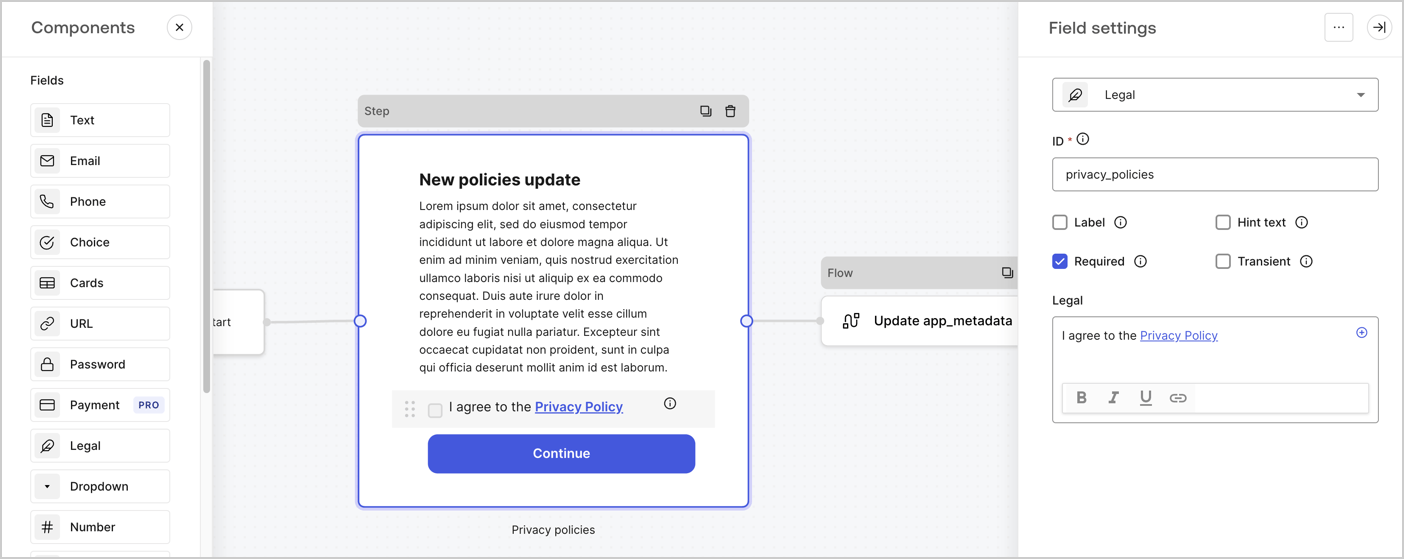
The Step node is the graphical interface visible to users. Add [Fields](/docs/customize/forms/nodes-and-components) to the Step node to collect the new agreement acceptance value by following these steps:

1. Drag a **Rich text** field from the **Components menu** into the **Step** node.

   * **Rich text**: Enter a description of your privacy policies updates.
   * Select **Save**.
2. Drag a **Legal** field into the **Step** node.

   * **ID**: Enter `privacy_policies`.
   * **Required**: Enable the checkbox.
   * **Legal**: Enter `I agree to the Privacy Policy`.
   * Select **Save**.
3. Select **Publish** to save.
<Frame>
  <img src="https://mintcdn.com/docs-staging-feat-3p-app-cross-app/XxknlFCIvL5gg2oE/docs/images/cdy7uua7fh8z/59zFFjQjAnjogkc2QGIqqJ/0ad66b1b636544122aa4e65968b76c2c/privacy-policy-step-node.png?fit=max&auto=format&n=XxknlFCIvL5gg2oE&q=85&s=3fc5ec31faa45d790b9328e7c68d1599" alt="Dashboard > Actions > Forms > Use case privacy policy step node" data-og-width="1404" width="1404" data-og-height="559" height="559" data-path="docs/images/cdy7uua7fh8z/59zFFjQjAnjogkc2QGIqqJ/0ad66b1b636544122aa4e65968b76c2c/privacy-policy-step-node.png" data-optimize="true" data-opv="3" srcset="https://mintcdn.com/docs-staging-feat-3p-app-cross-app/XxknlFCIvL5gg2oE/docs/images/cdy7uua7fh8z/59zFFjQjAnjogkc2QGIqqJ/0ad66b1b636544122aa4e65968b76c2c/privacy-policy-step-node.png?w=280&fit=max&auto=format&n=XxknlFCIvL5gg2oE&q=85&s=e221bdfb8b215821401898519874e7ce 280w, https://mintcdn.com/docs-staging-feat-3p-app-cross-app/XxknlFCIvL5gg2oE/docs/images/cdy7uua7fh8z/59zFFjQjAnjogkc2QGIqqJ/0ad66b1b636544122aa4e65968b76c2c/privacy-policy-step-node.png?w=560&fit=max&auto=format&n=XxknlFCIvL5gg2oE&q=85&s=a0819e8209be4553a7dd26e71d902448 560w, https://mintcdn.com/docs-staging-feat-3p-app-cross-app/XxknlFCIvL5gg2oE/docs/images/cdy7uua7fh8z/59zFFjQjAnjogkc2QGIqqJ/0ad66b1b636544122aa4e65968b76c2c/privacy-policy-step-node.png?w=840&fit=max&auto=format&n=XxknlFCIvL5gg2oE&q=85&s=b7000ba645cf6d4ddbd8b5981ab502e2 840w, https://mintcdn.com/docs-staging-feat-3p-app-cross-app/XxknlFCIvL5gg2oE/docs/images/cdy7uua7fh8z/59zFFjQjAnjogkc2QGIqqJ/0ad66b1b636544122aa4e65968b76c2c/privacy-policy-step-node.png?w=1100&fit=max&auto=format&n=XxknlFCIvL5gg2oE&q=85&s=e42c69422edaff16a1d5ffce5824fa2f 1100w, https://mintcdn.com/docs-staging-feat-3p-app-cross-app/XxknlFCIvL5gg2oE/docs/images/cdy7uua7fh8z/59zFFjQjAnjogkc2QGIqqJ/0ad66b1b636544122aa4e65968b76c2c/privacy-policy-step-node.png?w=1650&fit=max&auto=format&n=XxknlFCIvL5gg2oE&q=85&s=20cedb157d150bd25615f13a83ff5f75 1650w, https://mintcdn.com/docs-staging-feat-3p-app-cross-app/XxknlFCIvL5gg2oE/docs/images/cdy7uua7fh8z/59zFFjQjAnjogkc2QGIqqJ/0ad66b1b636544122aa4e65968b76c2c/privacy-policy-step-node.png?w=2500&fit=max&auto=format&n=XxknlFCIvL5gg2oE&q=85&s=a34eca63c7ad5594ef0c313634ccd7e6 2500w" />
</Frame>

### Configure the Flow node

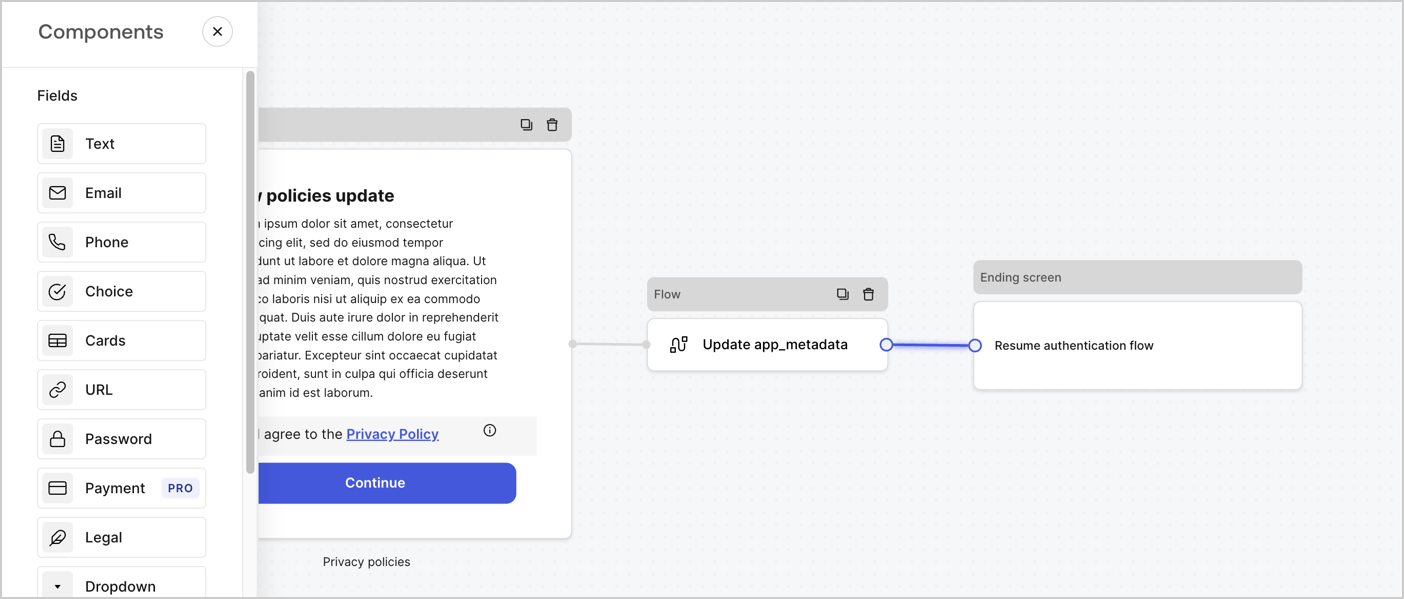
Add a **Flow** node after the **Step** node to update the `app_metadata` and resume the authentication flow by following these steps:

1. Select **Flow** from the bottom of the Form editor.
2. Remove the existing link between the **Step** and **Ending Screen** nodes.
3. Select the new **Flow** > **Click to add a flow** > **Create a new flow.**

   * Enter `Update app_metadata` in the **Name** field.
   * Select **Create**.
   * Select **Save**.
4. Link the **Flow** node to the **Step** and **Ending Screen** nodes as pictured below.
5. Select **Publish** to save.
<Frame>
  <img src="https://mintcdn.com/docs-staging-feat-3p-app-cross-app/nTdGsZGW3CusC03P/docs/images/cdy7uua7fh8z/6YIkzm7SrpM9LW76AXuRzh/353c518fe82bbaa440836da1d83596d6/link-policies.png?fit=max&auto=format&n=nTdGsZGW3CusC03P&q=85&s=e8108c78d0dea0d7604dcd6877934b80" alt="Dashboard > Actions > Forms > Form" data-og-width="1404" width="1404" data-og-height="599" height="599" data-path="docs/images/cdy7uua7fh8z/6YIkzm7SrpM9LW76AXuRzh/353c518fe82bbaa440836da1d83596d6/link-policies.png" data-optimize="true" data-opv="3" srcset="https://mintcdn.com/docs-staging-feat-3p-app-cross-app/nTdGsZGW3CusC03P/docs/images/cdy7uua7fh8z/6YIkzm7SrpM9LW76AXuRzh/353c518fe82bbaa440836da1d83596d6/link-policies.png?w=280&fit=max&auto=format&n=nTdGsZGW3CusC03P&q=85&s=1a9b5d97b08b3664c9904706e34cfdea 280w, https://mintcdn.com/docs-staging-feat-3p-app-cross-app/nTdGsZGW3CusC03P/docs/images/cdy7uua7fh8z/6YIkzm7SrpM9LW76AXuRzh/353c518fe82bbaa440836da1d83596d6/link-policies.png?w=560&fit=max&auto=format&n=nTdGsZGW3CusC03P&q=85&s=0e6ec8931b798321b3d237a8465f2a59 560w, https://mintcdn.com/docs-staging-feat-3p-app-cross-app/nTdGsZGW3CusC03P/docs/images/cdy7uua7fh8z/6YIkzm7SrpM9LW76AXuRzh/353c518fe82bbaa440836da1d83596d6/link-policies.png?w=840&fit=max&auto=format&n=nTdGsZGW3CusC03P&q=85&s=340b659b612217f5b41afd0b4c44a60a 840w, https://mintcdn.com/docs-staging-feat-3p-app-cross-app/nTdGsZGW3CusC03P/docs/images/cdy7uua7fh8z/6YIkzm7SrpM9LW76AXuRzh/353c518fe82bbaa440836da1d83596d6/link-policies.png?w=1100&fit=max&auto=format&n=nTdGsZGW3CusC03P&q=85&s=5f45642b1729f7936cf7522039fd612d 1100w, https://mintcdn.com/docs-staging-feat-3p-app-cross-app/nTdGsZGW3CusC03P/docs/images/cdy7uua7fh8z/6YIkzm7SrpM9LW76AXuRzh/353c518fe82bbaa440836da1d83596d6/link-policies.png?w=1650&fit=max&auto=format&n=nTdGsZGW3CusC03P&q=85&s=3833cb521876cbb6b40047ef81761a9f 1650w, https://mintcdn.com/docs-staging-feat-3p-app-cross-app/nTdGsZGW3CusC03P/docs/images/cdy7uua7fh8z/6YIkzm7SrpM9LW76AXuRzh/353c518fe82bbaa440836da1d83596d6/link-policies.png?w=2500&fit=max&auto=format&n=nTdGsZGW3CusC03P&q=85&s=c049f397decb40f1e8959de53e6d5d47 2500w" />
</Frame>

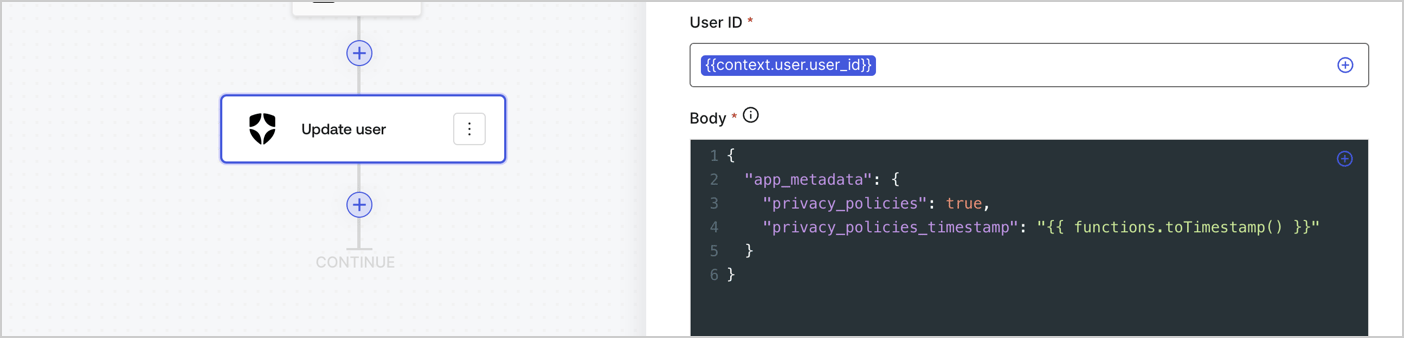
Add an Auth0 Update user action to the flow by following these steps:

1. Select the **Flow** **Update app\_metadata** > **Edit flow** to open the Flow editor in a new tab.
2. Below the StartAction, select the **+** icon to add an **Update user** action. Complete the fields below, then select **Save** to continue.

   * **Connection**: Select from the dropdown the Vault connection to your M2M application.

   * **User ID**: Enter `{{context.user.user_id}}`.

   * **Body**: Copy and paste the following code to update the app\_metadata with the privacy\_policies and privacy\_policies\_timestamp properties.

     ```text lines theme={null}
     {
       "app_metadata": {
         "privacy_policies": true,
         "privacy_policies_timestamp": "{{ functions.toTimestamp() }}"
       }
     }
     ```

   * Select **Save**.
3. Select **Publish** to save.
<Frame>
  <img src="https://mintcdn.com/docs-staging-feat-3p-app-cross-app/goRkT7T0dICpI-fQ/docs/images/cdy7uua7fh8z/CvMNIwWrOUwaFW4X3G28p/1fb70ae57a20749d9ffaaba8dc0b7e26/update-user-privacy.png?fit=max&auto=format&n=goRkT7T0dICpI-fQ&q=85&s=65e0cbd04076283c83bf35a928d5702d" alt="Dashboard > Actions > Forms > User case privacy policy code" data-og-width="1404" width="1404" data-og-height="338" height="338" data-path="docs/images/cdy7uua7fh8z/CvMNIwWrOUwaFW4X3G28p/1fb70ae57a20749d9ffaaba8dc0b7e26/update-user-privacy.png" data-optimize="true" data-opv="3" srcset="https://mintcdn.com/docs-staging-feat-3p-app-cross-app/goRkT7T0dICpI-fQ/docs/images/cdy7uua7fh8z/CvMNIwWrOUwaFW4X3G28p/1fb70ae57a20749d9ffaaba8dc0b7e26/update-user-privacy.png?w=280&fit=max&auto=format&n=goRkT7T0dICpI-fQ&q=85&s=8ab46a70e2543de860202641f07353f0 280w, https://mintcdn.com/docs-staging-feat-3p-app-cross-app/goRkT7T0dICpI-fQ/docs/images/cdy7uua7fh8z/CvMNIwWrOUwaFW4X3G28p/1fb70ae57a20749d9ffaaba8dc0b7e26/update-user-privacy.png?w=560&fit=max&auto=format&n=goRkT7T0dICpI-fQ&q=85&s=bc7ee59da685544e187d02a00cdee2c9 560w, https://mintcdn.com/docs-staging-feat-3p-app-cross-app/goRkT7T0dICpI-fQ/docs/images/cdy7uua7fh8z/CvMNIwWrOUwaFW4X3G28p/1fb70ae57a20749d9ffaaba8dc0b7e26/update-user-privacy.png?w=840&fit=max&auto=format&n=goRkT7T0dICpI-fQ&q=85&s=487c8b9469e5c89412b3008eb10ad979 840w, https://mintcdn.com/docs-staging-feat-3p-app-cross-app/goRkT7T0dICpI-fQ/docs/images/cdy7uua7fh8z/CvMNIwWrOUwaFW4X3G28p/1fb70ae57a20749d9ffaaba8dc0b7e26/update-user-privacy.png?w=1100&fit=max&auto=format&n=goRkT7T0dICpI-fQ&q=85&s=5300705882bebb138032e63db3455126 1100w, https://mintcdn.com/docs-staging-feat-3p-app-cross-app/goRkT7T0dICpI-fQ/docs/images/cdy7uua7fh8z/CvMNIwWrOUwaFW4X3G28p/1fb70ae57a20749d9ffaaba8dc0b7e26/update-user-privacy.png?w=1650&fit=max&auto=format&n=goRkT7T0dICpI-fQ&q=85&s=2c0cdfa1e7ca583a34c054a007fa1f52 1650w, https://mintcdn.com/docs-staging-feat-3p-app-cross-app/goRkT7T0dICpI-fQ/docs/images/cdy7uua7fh8z/CvMNIwWrOUwaFW4X3G28p/1fb70ae57a20749d9ffaaba8dc0b7e26/update-user-privacy.png?w=2500&fit=max&auto=format&n=goRkT7T0dICpI-fQ&q=85&s=98a9cfc76980f85e88d40cc9c298bc4d 2500w" />
</Frame>

<Callout icon="file-lines" color="#0EA5E9" iconType="regular">
  The flow **Update app\_metadata** adds a `privacy_policies true` value to the app`_metadata` object and also generates a timestamp with a [helper function.](/docs/customize/forms/variables)
</Callout>

## Retrieve the form render code

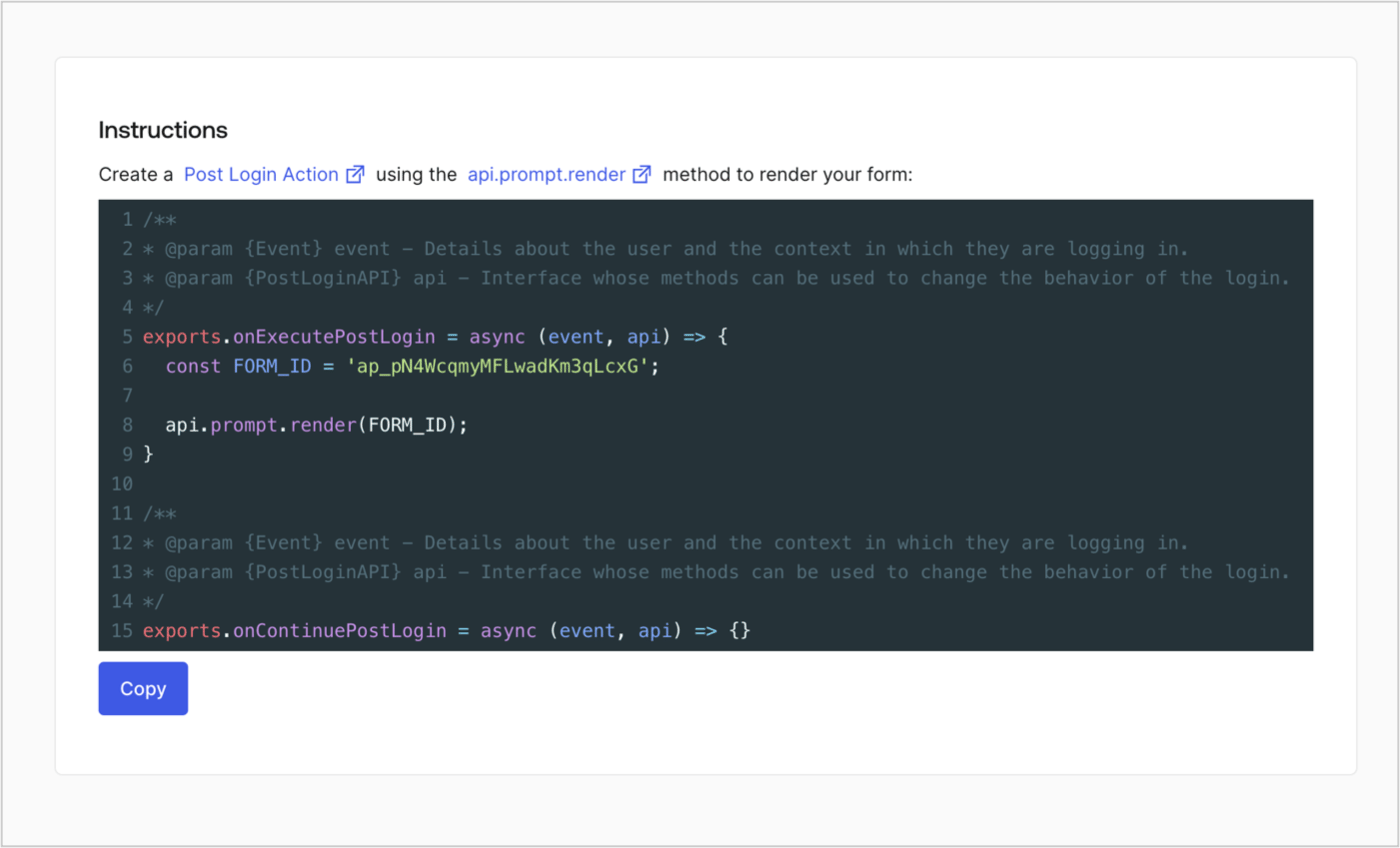
Retrieve your form render code to visually render the form with a custom Post Login Action by following these steps:

* From the Form editor, select **`<> Render`**.
* Select **Copy**.
<Frame>
  <img src="https://mintcdn.com/docs-staging-feat-3p-app-cross-app/8eYScLyZhtkRvDs6/docs/images/cdy7uua7fh8z/2EIUzc539sq9lwoTKbjoJv/496a864c0fc44a782c9cadca119dbfb0/embed.png?fit=max&auto=format&n=8eYScLyZhtkRvDs6&q=85&s=7c53ff75193ba521333e16faa86c3edc" alt="Dashboard > Actions > Forms > Form > Embed" data-og-width="1400" width="1400" data-og-height="848" height="848" data-path="docs/images/cdy7uua7fh8z/2EIUzc539sq9lwoTKbjoJv/496a864c0fc44a782c9cadca119dbfb0/embed.png" data-optimize="true" data-opv="3" srcset="https://mintcdn.com/docs-staging-feat-3p-app-cross-app/8eYScLyZhtkRvDs6/docs/images/cdy7uua7fh8z/2EIUzc539sq9lwoTKbjoJv/496a864c0fc44a782c9cadca119dbfb0/embed.png?w=280&fit=max&auto=format&n=8eYScLyZhtkRvDs6&q=85&s=8ed032b3914ff7ba5822d7d36df16c76 280w, https://mintcdn.com/docs-staging-feat-3p-app-cross-app/8eYScLyZhtkRvDs6/docs/images/cdy7uua7fh8z/2EIUzc539sq9lwoTKbjoJv/496a864c0fc44a782c9cadca119dbfb0/embed.png?w=560&fit=max&auto=format&n=8eYScLyZhtkRvDs6&q=85&s=c89cf819dfc0bf0bd451bda42095c501 560w, https://mintcdn.com/docs-staging-feat-3p-app-cross-app/8eYScLyZhtkRvDs6/docs/images/cdy7uua7fh8z/2EIUzc539sq9lwoTKbjoJv/496a864c0fc44a782c9cadca119dbfb0/embed.png?w=840&fit=max&auto=format&n=8eYScLyZhtkRvDs6&q=85&s=ea38d4794f2ce0b84f001e8f3af3158b 840w, https://mintcdn.com/docs-staging-feat-3p-app-cross-app/8eYScLyZhtkRvDs6/docs/images/cdy7uua7fh8z/2EIUzc539sq9lwoTKbjoJv/496a864c0fc44a782c9cadca119dbfb0/embed.png?w=1100&fit=max&auto=format&n=8eYScLyZhtkRvDs6&q=85&s=40b7965646d2ab244d301aaa7a854345 1100w, https://mintcdn.com/docs-staging-feat-3p-app-cross-app/8eYScLyZhtkRvDs6/docs/images/cdy7uua7fh8z/2EIUzc539sq9lwoTKbjoJv/496a864c0fc44a782c9cadca119dbfb0/embed.png?w=1650&fit=max&auto=format&n=8eYScLyZhtkRvDs6&q=85&s=55afb0840d1315569156da044bc61db9 1650w, https://mintcdn.com/docs-staging-feat-3p-app-cross-app/8eYScLyZhtkRvDs6/docs/images/cdy7uua7fh8z/2EIUzc539sq9lwoTKbjoJv/496a864c0fc44a782c9cadca119dbfb0/embed.png?w=2500&fit=max&auto=format&n=8eYScLyZhtkRvDs6&q=85&s=94def41c1daafc90ae7dec62fa3ad8bf 2500w" />
</Frame>

## Create a Post Login Action

Create a post-login Action to render your form by following these steps:

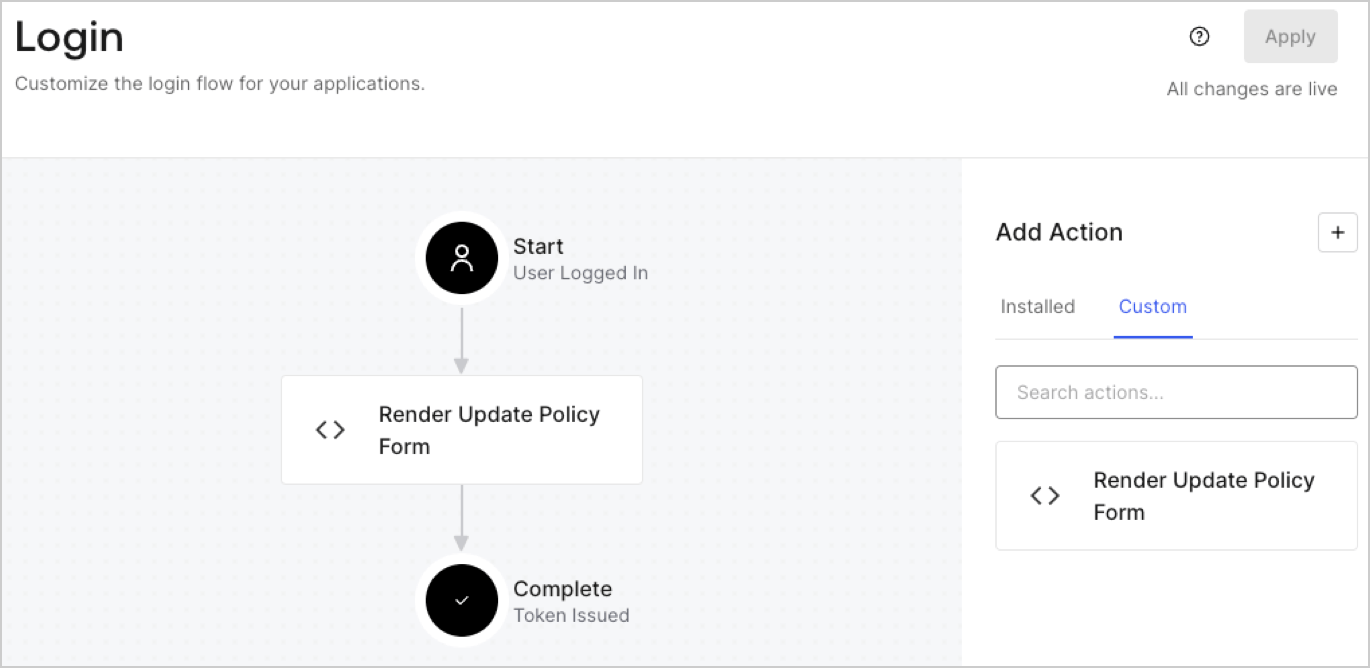
1. Navigate to **Auth0 Dashboard > Actions > Flows > Login.**
2. Select the **+** icon and Select **Build from scratch**:

   * **Name**: Enter `Render Update Policy Form`.
   * **Trigger**: Select `Login / Post Login`.
   * **Runtime**: Select the recommended version.
3. Select **Create**.

To configure the post-login Action:

1. Delete the existing code from the Code editor.
2. Paste the form render code into the Code editor.
3. Edit the code to define the conditional logic that will render the form.

   ```javascript lines theme={null}
   /**
   * @param {Event} event - Details about the user and the context in which they are logging in.
   * @param {PostLoginAPI} api - Interface whose methods can be used to change the behavior of the login.
   */
   exports.onExecutePostLogin = async (event, api) => {
     const FORM_ID = 'REPLACE_WITH_YOUR_FORM_ID';

     if (event.user.app_metadata.privacy_policies !== true) {
       api.prompt.render(FORM_ID);
     }
   }

   exports.onContinuePostLogin = async (event, api) => { }
   ```

   <Callout icon="file-lines" color="#0EA5E9" iconType="regular">
     The example code above will render the form when a user is missing the app metadata `privacy_policies` property.
   </Callout>
4. Select **Deploy.**
5. Drag and Drop the **Render Update Policy Form** Action to the **Login** flow.
   <Frame>
     <img src="https://mintcdn.com/docs-staging-feat-3p-app-cross-app/cTIKF7WTqp0TFnxB/docs/images/cdy7uua7fh8z/5TOwDgevZsBqd7yZynUYWU/41ca909dc3007aed4f40ff794a05efa5/postlogin.png?fit=max&auto=format&n=cTIKF7WTqp0TFnxB&q=85&s=2daede03cbab905f6b9f72447810dd14" alt="Dashboard > Forms > Use Case > Render update policy form login action" data-og-width="1370" width="1370" data-og-height="668" height="668" data-path="docs/images/cdy7uua7fh8z/5TOwDgevZsBqd7yZynUYWU/41ca909dc3007aed4f40ff794a05efa5/postlogin.png" data-optimize="true" data-opv="3" srcset="https://mintcdn.com/docs-staging-feat-3p-app-cross-app/cTIKF7WTqp0TFnxB/docs/images/cdy7uua7fh8z/5TOwDgevZsBqd7yZynUYWU/41ca909dc3007aed4f40ff794a05efa5/postlogin.png?w=280&fit=max&auto=format&n=cTIKF7WTqp0TFnxB&q=85&s=f2c58934f686b9468d889a0cbba62d47 280w, https://mintcdn.com/docs-staging-feat-3p-app-cross-app/cTIKF7WTqp0TFnxB/docs/images/cdy7uua7fh8z/5TOwDgevZsBqd7yZynUYWU/41ca909dc3007aed4f40ff794a05efa5/postlogin.png?w=560&fit=max&auto=format&n=cTIKF7WTqp0TFnxB&q=85&s=7fbc337594d7612746221ebdbe4104aa 560w, https://mintcdn.com/docs-staging-feat-3p-app-cross-app/cTIKF7WTqp0TFnxB/docs/images/cdy7uua7fh8z/5TOwDgevZsBqd7yZynUYWU/41ca909dc3007aed4f40ff794a05efa5/postlogin.png?w=840&fit=max&auto=format&n=cTIKF7WTqp0TFnxB&q=85&s=c5f89756f4ec38d9ce76b5dfe687873e 840w, https://mintcdn.com/docs-staging-feat-3p-app-cross-app/cTIKF7WTqp0TFnxB/docs/images/cdy7uua7fh8z/5TOwDgevZsBqd7yZynUYWU/41ca909dc3007aed4f40ff794a05efa5/postlogin.png?w=1100&fit=max&auto=format&n=cTIKF7WTqp0TFnxB&q=85&s=2d414b5c780460da78783dba130b2070 1100w, https://mintcdn.com/docs-staging-feat-3p-app-cross-app/cTIKF7WTqp0TFnxB/docs/images/cdy7uua7fh8z/5TOwDgevZsBqd7yZynUYWU/41ca909dc3007aed4f40ff794a05efa5/postlogin.png?w=1650&fit=max&auto=format&n=cTIKF7WTqp0TFnxB&q=85&s=98aec7a2077d72de14092c8dbb6afd08 1650w, https://mintcdn.com/docs-staging-feat-3p-app-cross-app/cTIKF7WTqp0TFnxB/docs/images/cdy7uua7fh8z/5TOwDgevZsBqd7yZynUYWU/41ca909dc3007aed4f40ff794a05efa5/postlogin.png?w=2500&fit=max&auto=format&n=cTIKF7WTqp0TFnxB&q=85&s=06e310bd054265b21bfd8efb1adf53c2 2500w" />
   </Frame>
6. Select **Apply.**

### Test implementation

Test the implementation by following these steps:

1. Log in with an existing user whose app`_metadata` attribute `privacy_policies` does not have a value.
2. The post-login Action in the Login flow will render the form and prompt for acceptance.
3. Select **Auth0 Dashboard > User Management > Users,** locate the user and verify that the `app_metadata` attribute `privacy_policies` contains a `true` value and a timestamp.
